Member Management Page
On the Member Management page, you can manage your members balances and see the list of tracked members. You can quick edit the balance of a member by clicking on the edit button.
Note that puting a balance at 0 will remove the member from the members list only if he is not tracked. You can also click on the Details button to see more information about a member.
You may also delete a member from your server by clicking on the delete button. Deleting a member will remove his balance.
You can also search for a member by his Discord ID using the search bar at the top of the page.
Member Details
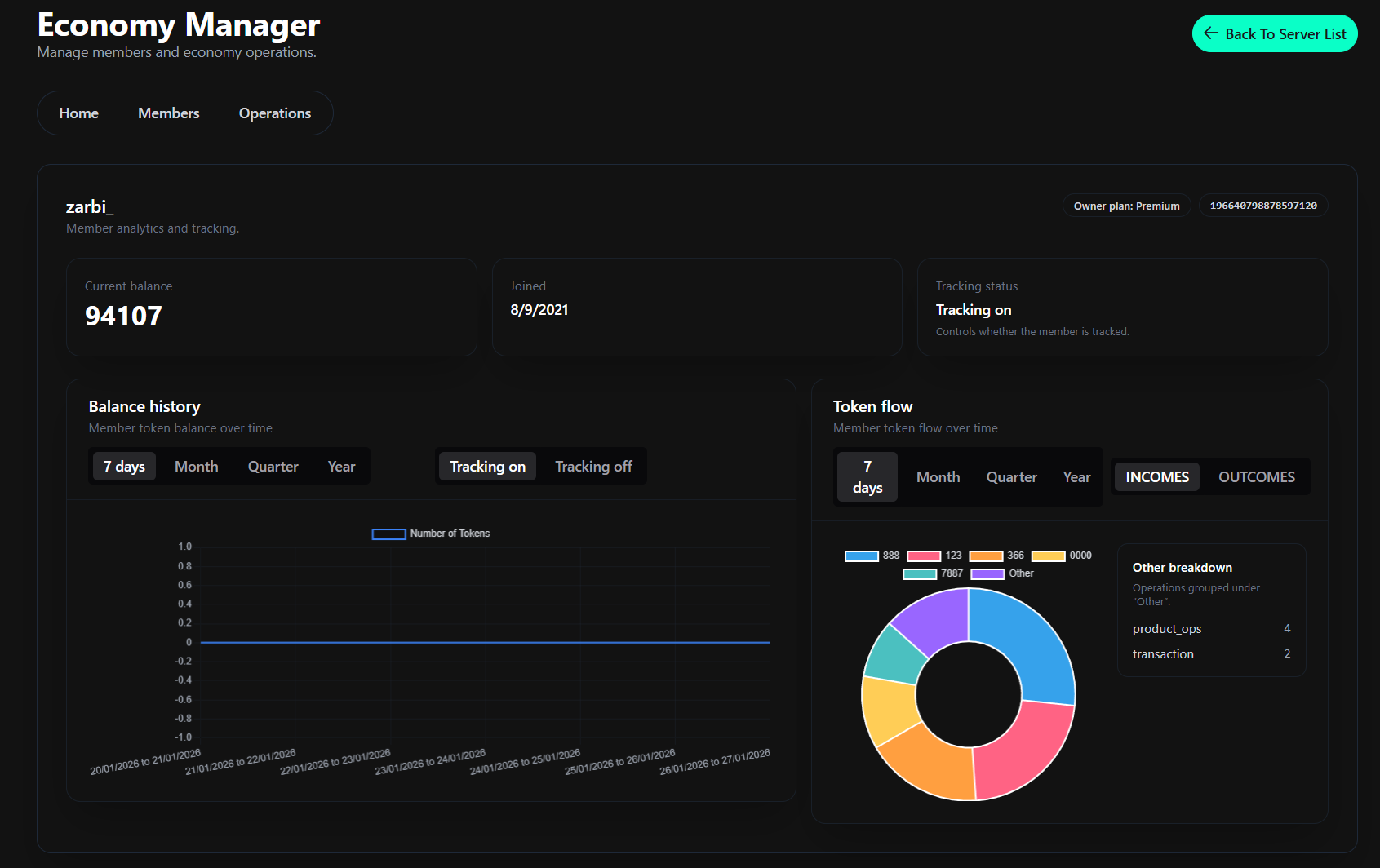
On this page, you can see the different sources of income and outcomes of a member. You can also see the balance of the member and a graph representing the balance of the member over time (only if you have enabled the tracking on this member). You can also see the member current blance, server join date and tracking status at the top of the page.
Member Tracking
By turning the tracking on a member, Shopbot will register his balance every 24 hours. You can see the history of the balance of a member looking at the graph that is on the member details page. Turning the tracking on will also turn on the operations tracking on your server if it is not already enabled.
Member Operations Tracking
Member Incomes
The member incomes are the operations that are adding tokens to a member balance. A doughnut chart is representing the different sources of incomes of a member. This charts represents the top 5 incomes of a member and then categories the other into operations types under the Other category. On the side there is a recap of what type of operations are in the "other" category and their token amount.
Incomes Cheat Sheet
For all incomes the value is the amount of tokens that the user received.
| Option Name | Description |
|---|---|
| Product Operation | The name that is associated with the token value will be the Product ID of the product that gave x token to the member (it means that the user purchased a product with real money that gave him tokens) |
| Transaction | The name that is associated with the token value will be the Discord ID of the user that sent x token to the member |
| Admin Operation | The name that is associated with the token value will be the Discord ID of the ShopAdmin that gave x token to the member |
| User Charge | The name that is associated with the token value will be the Discord ID of the user that was charged x token by the member |
Outcomes Cheat Sheet
For all outcomes the value is the amount of tokens that the user sent/gave or lost.
| Option Name | Description |
|---|---|
| Product Operation | The name that is associated with the token value will be the Product ID of the product that removed x token to the member ( it means that the user purchased a product with his tokens) |
| Transaction | The name that is associated with the token value will be the Discord ID of the user that received x token from the member |
| Admin Operation | The name that is associated with the token value will be the Discord ID of the ShopAdmin that removed x token from the member |
| User Charge | The name that is associated with the token value will be the Discord ID of the user that charged x token to the member |